You can certainly train a message as spam if you want to block that sender in the future. My point is that there are some users who think they’re supposed to train every message in Junk or who train messages just to move them to the Trash (instead of pressing Delete). This is unnecessary and potentially harmful. There’s probably a better way to accomplish whatever they are trying to do.
It was probably moved there by a server junk filter or by another Mail rule. Please see this page.
George – I have been through this frustrating conversation with Mr. Tsai before. There is evidently some fundamental understanding gap between what WE think the software documentation seems to say it does and what it really does. Quite simply, Mr Tsai: Our understanding, and wish, is that once you have marked something as spam, subsequent emails from the same sender (or looking like they’re from the same sender) should go automatically to Trash. Evidently in real life that’s not what happens. Our request is that it should behave as described above.
SpamSieve normally moves spam messages to the Junk mailbox. When using the Mail extension setup, the Move it to the Trash if the spam score is at least setting can be used to move certain (more spammy) messages to the Trash mailbox instead.
That’s exactly what it does.
The issue here is that if your mail server is configured such that the messages bypass SpamSieve, SpamSieve would not have moved those messages to Junk, either. So this really has nothing to do with the Trash preference. It has to do with SpamSieve not being able to see the messages in the first place.
There are two solutions:
You can configure your mail servernot to move messages out of the Inbox. Then SpamSieve’s normal filtering will be able to see them.
If you can’t or don’t want to do that, you can instead configure SpamSieve to refilter messages that arrive on your Mac already in the Junk mailbox. I have mentioned this solution to you multiple times. The first time, you said you would try it and let me know and then stopped replying. The second time, you said you thought it was working. The third time you didn’t reply.
All I want is my Junk mails to be filtered to the (presumably if they’re indeed spam) trash folder.
From the 2 solutions provided above:
1.) As said in the documentation, AOL doesn’t have an option to turn off the spam filter - so I don’t think this is an option to configure my mail server.
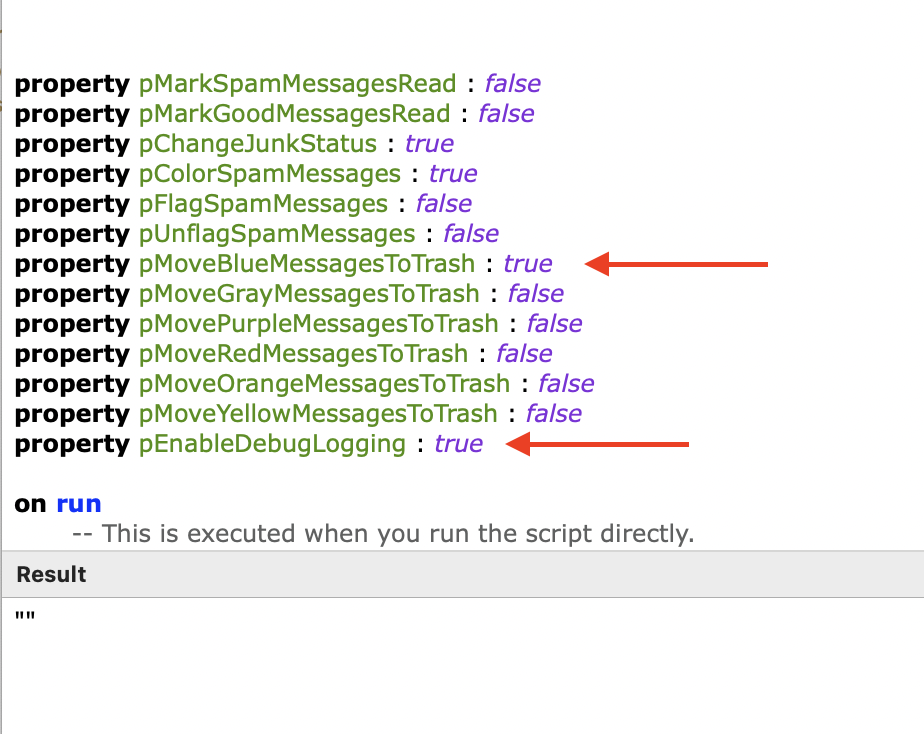
2.) I do have the “Rescue Good Messages” script enabled, (I also turned on the pEnableDeubLogging variable to ‘true’, which just yields an empty string of “”.
Is there any other variables to make true for it to actually move the emails in the Junk folder?
Both the errors and the debug logging go to the Console app, not Script Editor. You can enter SpamSieve [Apple Mail Rescue Good Messages] in the Search field of Console before running the script to make it easier to see them.
Those settings are correct. Based on your post above, it sounds like either the script is not being applied or that it’s encountering an error. If the problem were with these settings, SpamSieve’s Log window would say Predicted: Spam for the messages, but you said it didn’t say Predicted for them at all.
So for anyone having trouble, I asked ChatGPT and this worked (for me, your results will vary).
I closed Apple Mail.
I then went to ~/Library/Mail/V10/MailData/ directory, and made a folder on the desktop and put “Envelope Index”, Envelope Index-shm, and Envelope Index-wal into the folder from the directory mentioned.
Then I reopened Apple Mail - it did a lot of things behind the scenes, like downloading 4000+ emails, but with leaving Apple Mail on - everything appeared to have fixed itself.
I waited until I got junk mail (which I get literally 100s a day) and it did move automatically to the Trash with SpamSieve’s logging.
On a side note most (not all) spam emails now have a puzzle piece icon, this means SpamSieve is picking them up (or an extension in general, but SpamSieve is all I have).
For now, unless I say otherwise later, it appears to have been working.
We have our own instructions for rebuilding Mail’s database. However, this is generally not what one should do in the situation that you described above. It’s better to look at the Console log and see what the rescue script is actually doing. Rebuilding the database will usually not fix rule/script problems.
That is good, although based on what you’ve described it’s not clear that the problem is actually fixed.
If they have the puzzle piece icon, that means SpamSieve found them in the inbox, which means these are not the messages that you were having trouble with. When the rescue script finds already-filtered spam messages in the Junk mailbox to move them to Trash they will not get a puzzle piece icon, just the colored background in the message list.
If there are messages that are properly being moved from Junk to Trash, the Origin info in the Log window will say Unknown because it’s coming from the script rather than from the extension or SpamSieve itself.
When I selected “Apply Rules” in Apple Mail, with “SpamSieve [Apple Mail Rescue Good Messages]” in the Console app, I got a bunch of “logger” processes like this:
SpamSieve [Apple Mail Rescue Good Messages] Start checking mailbox “HIDINGMYEMAIL” / “Junk Email”:
I am sorry to have irritated you. Still, I believe the responses I received earlier did not solve my problem. The fact that I didn’t follow up, though, is on me.
Maybe you could wrap it all up, though:
1. Please list the scripts and what order to use to make subsequent messages from ones that I have trained as spam go directly to Trash. In that process they should be marked as Read.
2. Please tell us how to designate various messages in the Junk folder to in future go directly to Trash, marked as Read.
3. Explain how determine whether a particular message in the Junk folder got there because it bypassed SpamSieve.
Thanks for the great software and for your efforts to help. I again beg forgiveness for irritating you.
I recommend testing the script by opening it in Script Editor and clicking the Run button.
That sounds good so far. I think you’ll need to wait until you find a spam message in your Junk mailbox that should have gone to Trash and that does not have a colored background (indicating that SpamSieve hadn’t processed it). If that never happens, then it’s all working already. If it does happen, then you could open Console and run the script and see what the logging shows.
Just one script, the rescue script mentioned here. To make the messages go to Trash and get marked as read, two lines at the top of the script need to be modified:
This is what I did, and posted a screenshot of the script yesterday with the result being an empty string of quotes.
As for the Console, I got spam in Apple Mail at 11:25 AM. I entered “Mail” “SpamSieve” and the date & time for 11:25 AM.
The errors I see in that timeframe are (in order):
1.) Persistent store service connection invalidated: failed at lookup with error 159 - Sandbox restriction
2.) Error communicating with persistent store service proxy: Error Domain=NSCocoaErrorDomain Code=4099 “The connection to service named com.apple.contactsd.persistence was invalidated: failed at lookup with error 159 - Sandbox restriction.” UserInfo={NSDebugDescription=The connection to service named com.apple.contactsd.persistence was invalidated: failed at lookup with error 159 - Sandbox restriction.}
3.) Error connecting to remote endpoint: (null)
4.) fault: Unable to create token NSXPCConnection. NSXPCStoreServerEndpointFactory 0xb0aacece0 -newEndpoint returned nil
5.) CoreData: Unable to create token NSXPCConnection. NSXPCStoreServerEndpointFactory 0xb0aacece0 -newEndpoint returned nil (Which is a fault)
And these errors & faults appear to repeat several times.
Also worth noting that other rules “DO” work (I don’t have any other rules currently active, I merely created another rule to test if any rules work and then deleted the test rule).
In short:
1.) Rules do work, but not Rescue Good Messages. (Or at least it’s not moving the Junk emails in the Junk folder to the Inbox).
2.) The issue is either the specific script Rescue Good Messages or Script rules in general not working. Though I guess I could write a simple script to see if it does work…
I decided to test this out by taking a junk mail (not colored) and put it into the Junk folder and mark is as unread - nothing happens when I apply the rule.
Is there a way to automatically move ALL emails in the Junk folder to the Inbox (so it can then be sorted SpamSieve)?
I don’t understand what you’re trying to do. Moving the messages to Inbox will not make Mail see them as new. And the script already sorts the messages in Junk in-place. There’s no reason to move them to the Inbox first.