Hi,
used SpamSieve since Mailsmith days and mostly on POP3 accounts. Never bothered much about setting it up properly and understanding all it does… (my bad)
Now finally moving my main 3 accounts to IMAP rather than POP3 ( Mac / Ipad and iPhone ). Doing a clean install of everything on a new MBpro 14” (yay) and am wondering how to set up and deal with Spamsieve / Spam.
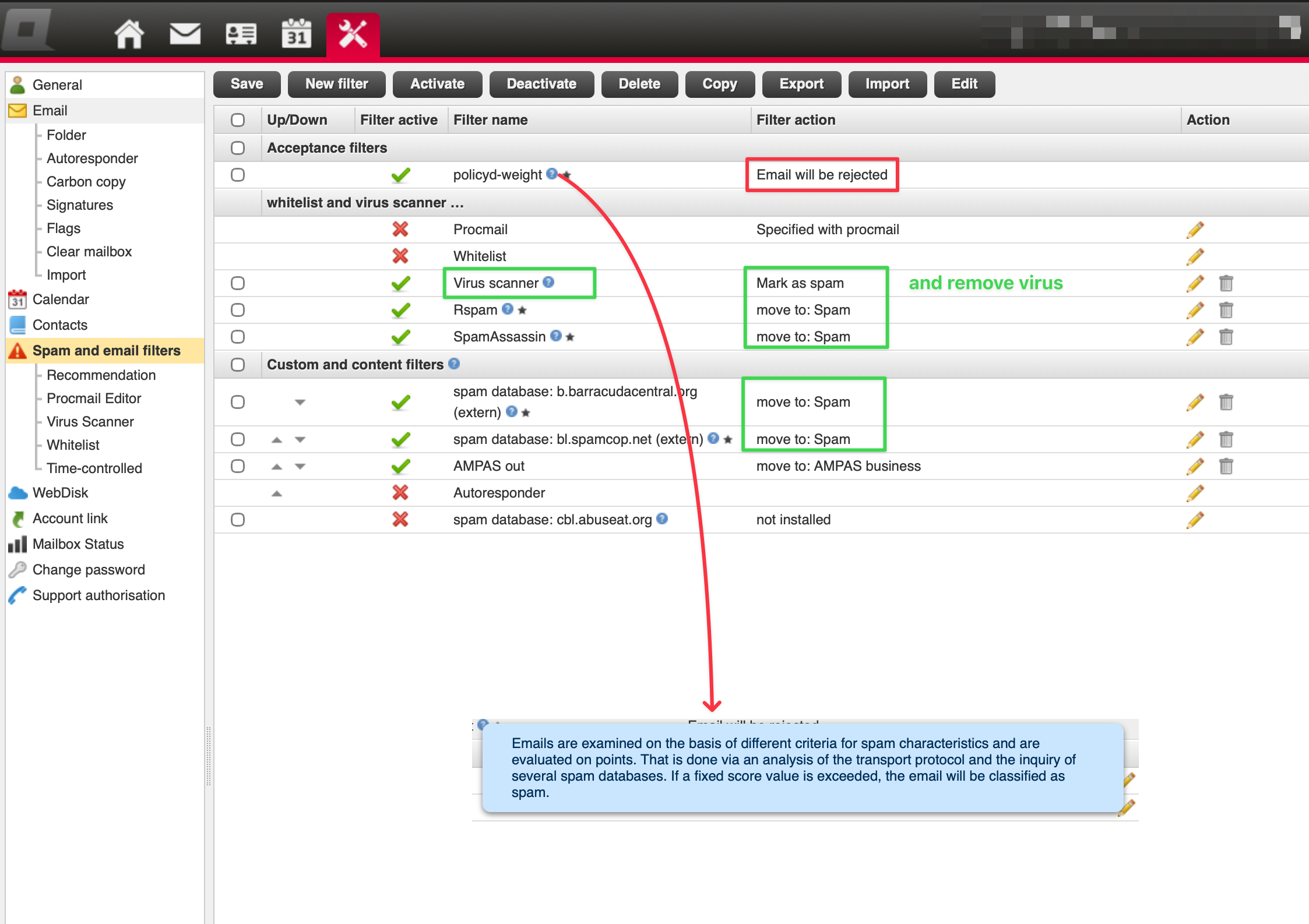
This is the setup my provider has as a default on the server side, a number of activated rules related to various Spam filters they offer.
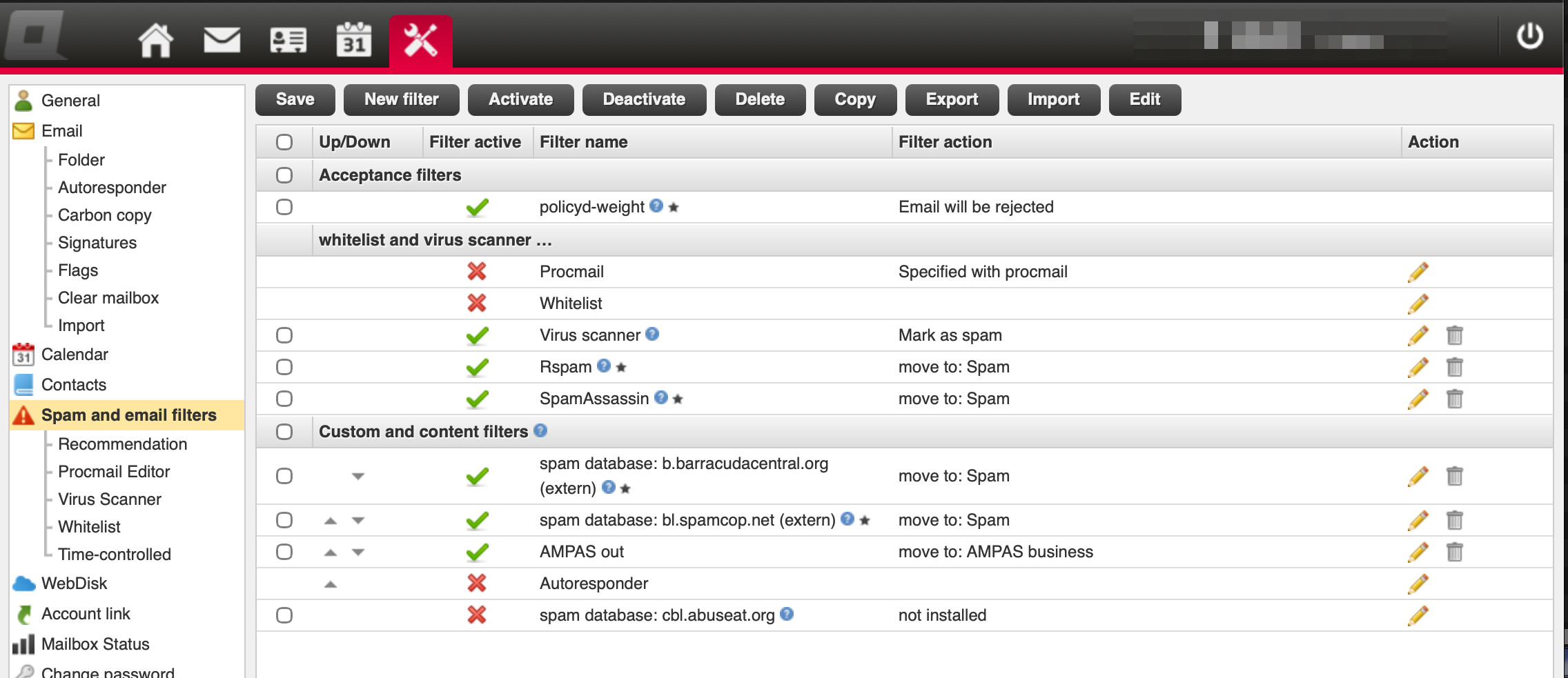
I also plan to use my own rules to sort out some specific mails (tax guy, bank, current project etc.) into specific folders I’ll have to create inside the IMAP structure (sample here AMPAS related stuff, there is an “AMPAS business” folder and the needed rule.)
Now as I move to IMAP the Spam should obviously be moved to the “Junk” Folder in that specific IMAP account (to be still accessible on iPad and iPhone) , NOT a general Spam Folder on my computer that I had used with my POP3 setups.
Question, what’s with SPAM filters…
-
should I leave the server side spam filters active, they are mostly set up to put Spam in the “Junk” folder.
-
Or should I deactivate all server side spam filters and rely 100% on Spam Sieve doing it locally. Keep in mind iPad and iPhone don’t have that “SpamSieve” ability so if I go fully Spamsieve the finding and dealing with spam can only happen when my Macbook is online. If I travel I often am at more remote locations where the laptop is in my backpack and basically not online, so “Spam hygiene” would happen e.g. only in the evening in the hotel…
Also when I use server side rules to sort incoming emails into specific sub-folders, I would need to include these specific sub-folders in the Spamsieve “to check” list. right ?
Any recommendation and insights would be appreciated.
kindest regards Grueni