The Rescue Good Message script is not processing some emails in the Junk folder. This just started a few weeks ago. Many are processed properly, but some aren’t processed at all. They do not show up in the Log window and remain in the All Junk folder in Apple Mail. When I move the skipped emails to trash, the background is white. The junk emails are marked Unread.
It’s now over 1/2 hour after I received 2 junk emails, and they remain in the All Junk Folder. I have set the app to run every 5 minutes. I just tried running the script in Apple Script, and 1 of the 2 junk emails was moved to Trash, but the other remains.
After I wrote the above text, the remaining junk email was moved to Trash. I have set the script properties such that blue, gray, purple, red orange and yellow are all sent to Trash.
It seems that this behavior started when I updated to version 26 of the Mac OS, but I’m not sure.
I’m running it as a stand alone app. Then I tried running the script. Running the script moved the newest one to the trash, and the stand alone app moved the second one to Trash while I was watching.
I don’t recall the emails involved when this happened, so I can’t answer your second question.
A few weeks ago I had about 20 emails in my Junk folder, and they had been building up for hours. I ran the script and nothing happened, so I just moved them all to the trash. Then things mostly worked as they should. It’s an intermittent problem, and I doubt that the script is responsible.
However, right now there is one email in All Junk which is dated 13 minutes ago, and the app is set to run every 5 minutes. Here’s a screenshot:
I opened the script editor and ran the script. The email was sent to the trash. But the app should have done that earlier.
This is the modified script to have the app run every 5 minutes:
on idle
– This is executed periodically when the script is run as a stay-open application.
my filterServerJunkMailboxes()
return 60 * 5 – Run again in 5 minutes.
end idle
I think the way App Nap works has changed on Tahoe. I wonder if maybe macOS is putting the script app to sleep so that it never gets any processor time. Does clicking on the script app’s Dock icon get it to process the messages?
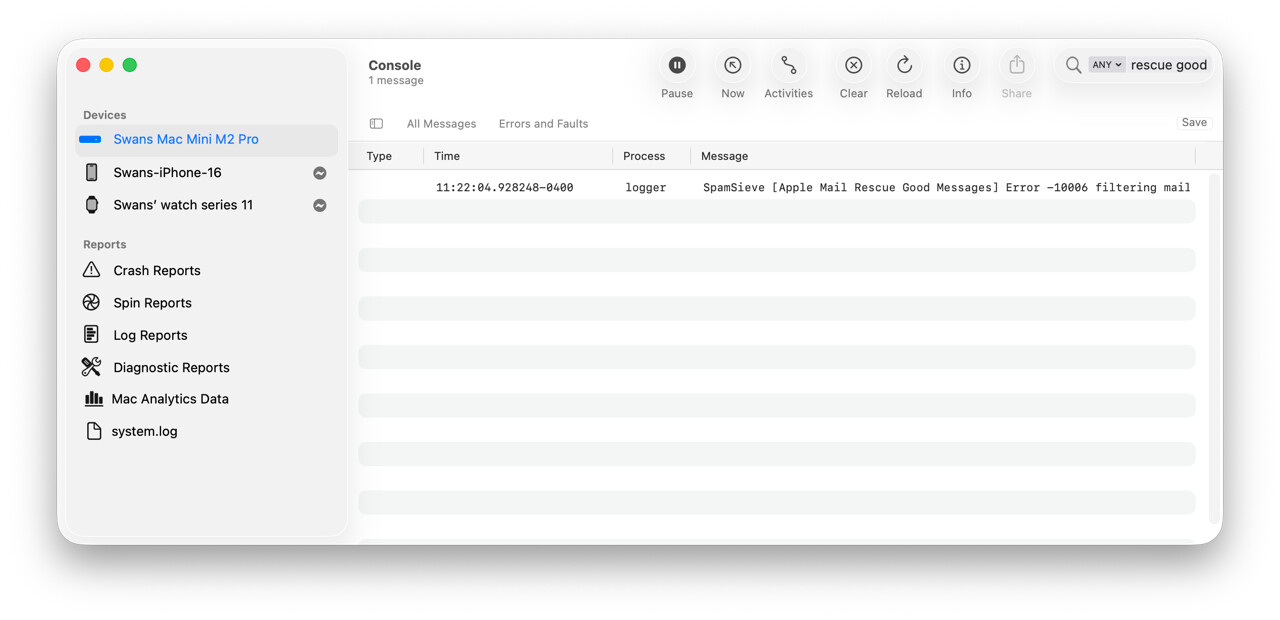
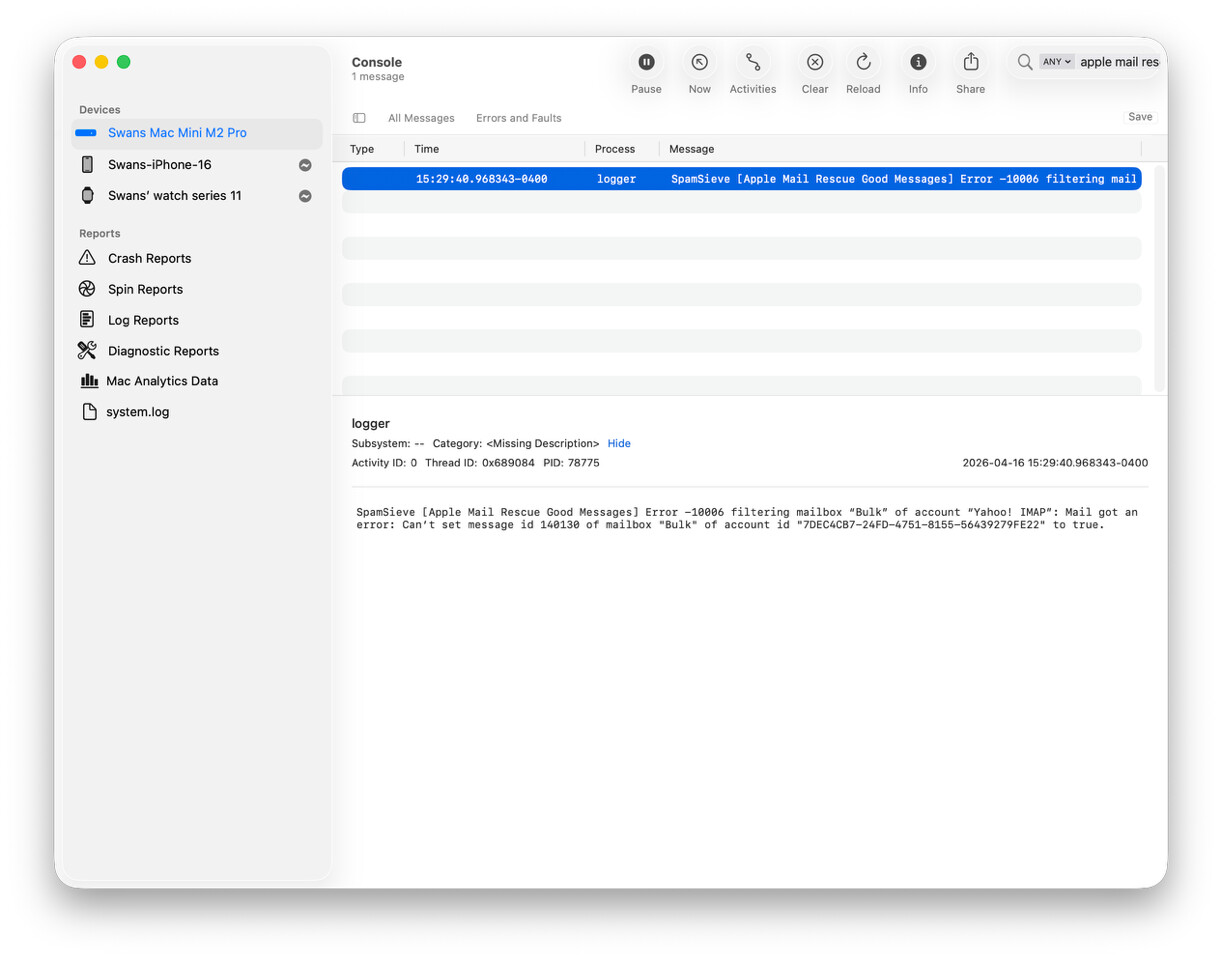
It’s also possible to enable debug logging at the top of the script. Then you could open a search in the Console app for Apple Mail Rescue Good Messages and see when the script is running and what it’s doing.
I was watching my Junk folder and noticed again something odd. There were 2 emails in Junk, not yet processed by the Rescue app. The newest disappeared to the trash, but the older one was untouched. 5 minutes later, 10 minutes after the email appeared, the older email was sent to Trash.
So the script app processed the newer one, skipped the older one, but then later processed the newer one.
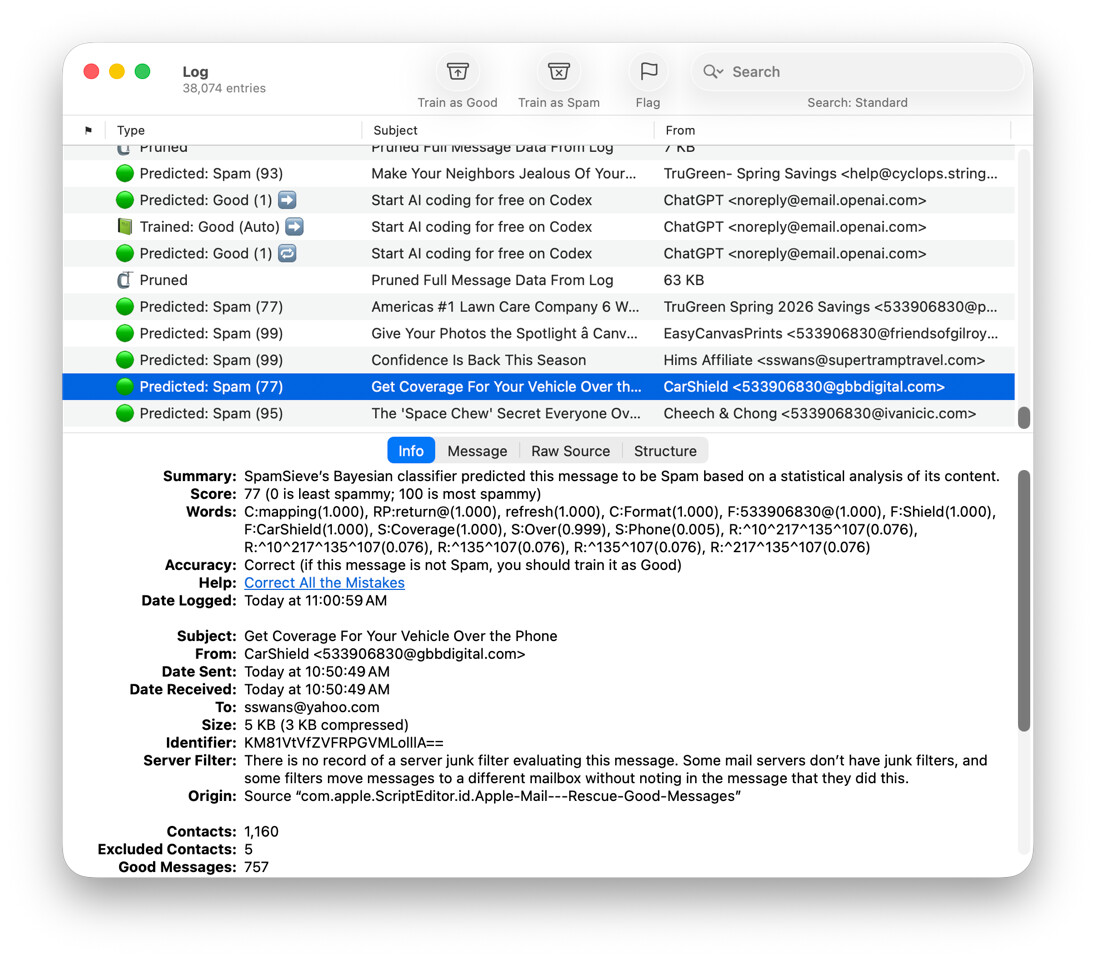
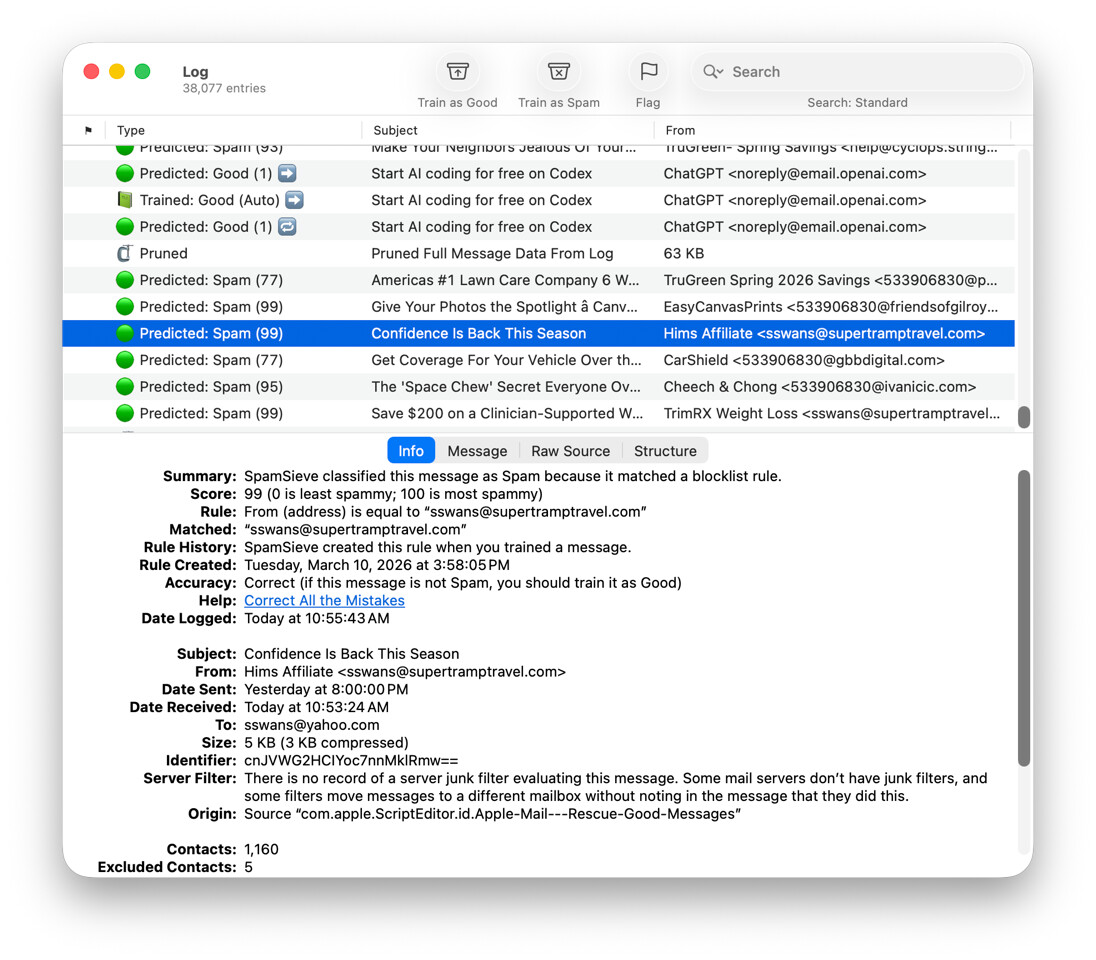
In the picture below, the older email is highlighted. It was received at 10:50:49 AM, and processed at 11:00:59 AM, 10 minutes later.
Sorry, I had paused and quit Console. The tardy email in Junk is now in the trash, and was processed 1/2 hour after it arrived and was skipped multiple times.
I’ll look for another skipped junk email and click on it if it happens again.
I had opened and was reviewing the Spam Sieve log, and saw an email in the Junk folder. The time limit passed when that email should have gone to Trash, so the script app had skipped it. I switched to another app, and when I checked back some time later, that email had been sent to Trash.
I have the script app set up to run every 5 minutes, but this time it took 9 minutes. From the log:
Date Logged: Today at 11:17:21 AM
Subject: Bill Gates: "It's over for Alzheimer's" ⨠ð§ ð¥
From: CNN <59javht1919974@gomerblog.com>
Date Sent: Today at 11:08:36 AM
Date Received: Today at 11:08:37 AM
If you enable debug logging in the script, it will report in Console every time it runs, so you will be able to see which schedule macOS is running it at and when it’s finding new messages to filter. It may take some time between when it queries Mail for new messages and when the message is actually processed and logged to the Log window.
I think some code I inserted some time ago might be causing this intermittent problem. I’ve commented the change out in the code below. I can’t recall right now why I added it, but it worked for a long time, and still works most of the time.
I’ve exported the script, with my changes removed, as an app, and will keep an eye out for any problems.
As always, operator error is most likely (mine).
	if _isSpam and pMarkSpamMessagesRead then
		set _message's read status to true
	end if
	set _moveToTrash to my colorMessageAndDecideIfShouldMoveToTrash(_message, _score)
	if _moveToTrash then
		delete _message
		-- start my insertion
		-- 		if pMarkSpamMessagesRead then
		-- 			set _message's read status to true
		-- 		end if
		--		-- end my insertion
	else if _isSpam then
		my debugLog("Leaving spam message in Junk: " & _message's subject)
	end if